Exclusions that blind EDR, too.
Most exclusions only affect the virus scanner. Linux global exclusions and allow indicators also switch off detection. Wardline gives them their own view.
Wardline for Microsoft Defender and AI agents
Wardline shows where Microsoft Defender and your AI agents actually have gaps – on Windows, macOS and Linux, not just in your policies. It runs in your own Azure tenant, read-only.


Every open finding by severity, and what Wardline counted in your tenant.
Wardline checks every setting on three levels: what you want, what Intune configures, and what is actually effective on the device. The gap between the last two is where attackers get in.
mdatp config
Effective state comes from Defender itself – Advanced Hunting and threat and vulnerability management – not from the policy.
Endpoint
Intune, Security Settings Management, changes made locally on the device and allow indicators in Defender for Endpoint – for Windows, macOS and Linux, in one list. Every entry gets a risk rating you can follow: the broader, the more writable and the less centrally managed, the riskier.
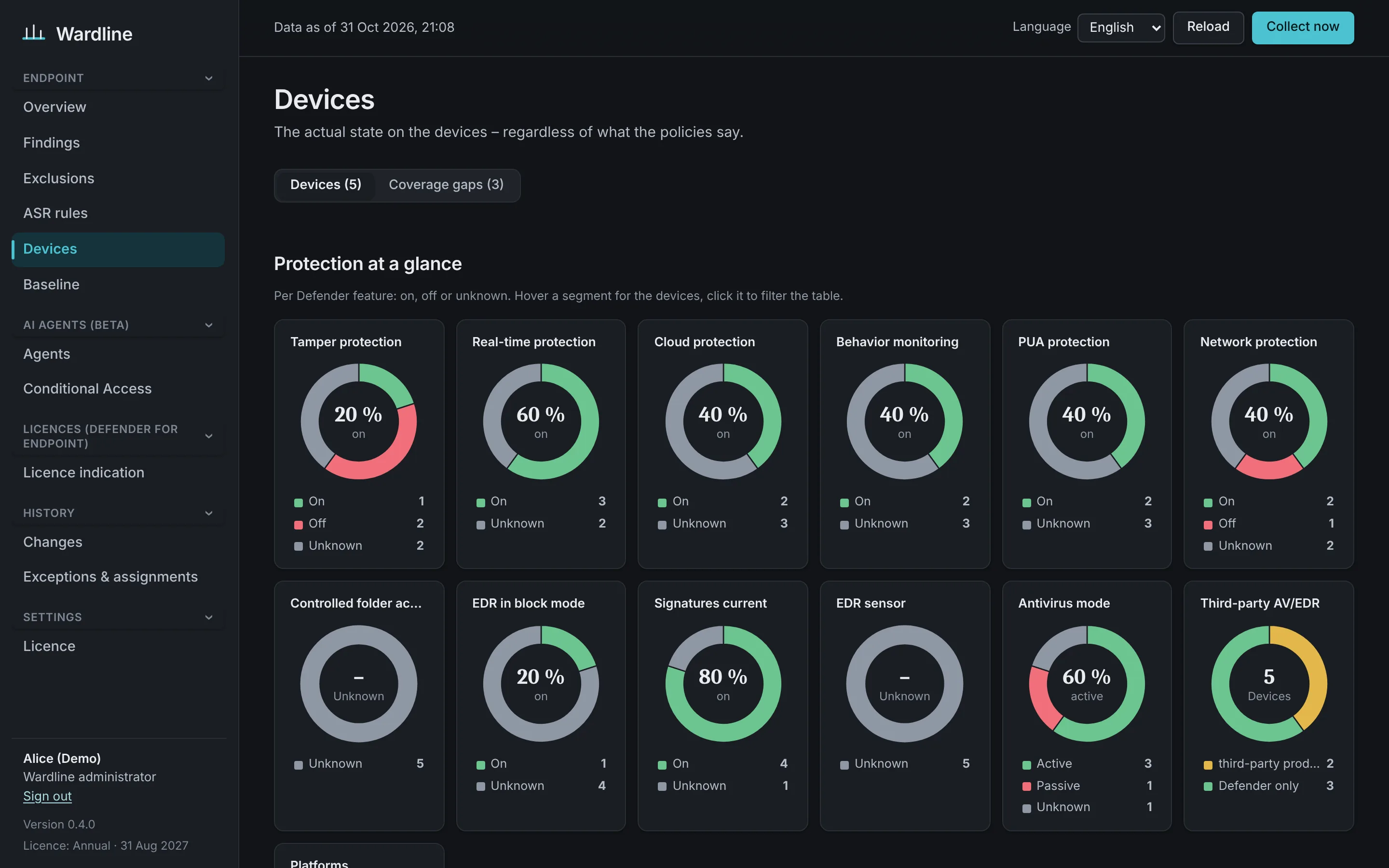
Exclusions from Intune, Group Policy and the local registry, ASR rules per device and device group, baseline, tamper and network protection, platform and signature age.
Exclusions from Intune and local mdatp commands, baseline, Full Disk Access and system extensions, agent version.
Global exclusions that also blind EDR, local changes through mdatp config and mdatp_managed.json, real-time protection, agent version.
Most exclusions only affect the virus scanner. Linux global exclusions and allow indicators also switch off detection. Wardline gives them their own view.
Added by someone on the device, not in any policy. Wardline finds them through Advanced Hunting and keeps the history beyond Defender’s 30 days.
Target, configured and effective mode for every rule – overall, per Defender device group and per device, including conflicts between policies and ASR exclusions.
Microsoft Defender Antivirus on Windows, macOS and Linux against your baseline – and exactly what changed since the last run.
Did anything run from that path in the last 30 days? If not, the exclusion is a blind spot you can remove.
Wardline compares Intune-managed devices with Defender for Endpoint and lists every device that was never onboarded – the gaps no Defender report can show you.
Operating systems past end of support, devices without a recent scan, WSL without the Defender plug-in, detected threats set to “allow”, passive mode without EDR in block mode – and ASR rules that are ready for block because audit saw nothing in 30 days.
Is the Intune connector on for every platform you use? Does compliance require a low machine risk score, and does Conditional Access enforce it? Otherwise a compromised device keeps its access.
A local exclusion is a risk. Tamper protection switched off is a risk. Both on the same device means anyone with local admin rights can blind Defender – and nobody notices. Wardline connects the dots and rates the combination.
powershell.exe
High
DisableLocalAdminMerge or exclusionsMergePolicy is missingAI agents Beta
Copilot Studio, Foundry and custom agents from Microsoft Entra Agent ID, the Agent 365 registry and Defender – plus the coding assistants running on your endpoints.
A policy for the agent identity doesn’t apply to its agent user. And “All users” doesn’t include agent users. Wardline rates both separately.
Local agents run with the rights of the signed-in user, so Conditional Access doesn’t reach them. What matters is the device and how the agent is configured.
npx -y @modelcontextprotocol/server-filesystem
Access Optional
Wardline reads Defender XDR unified RBAC: who holds which Defender role, which data sources it covers and whether it was ever used – no matter if it was assigned directly, through a group, eligible in PIM for groups or through an access package in entitlement management.
Search by role or a single permission – live response, for example – and see everyone who has it, or could get it.
Every employee can see their own Defender roles, with links to PIM and My Access. No ticket needed.
Service principals that can offboard, isolate or run live response through the Defender APIs – with client secrets, credential lifetime and owners. Plus role groups without access review and PIM activation without MFA.
From the Purview audit log: who downloaded an offboarding package, who ran live response, which settings were changed. None of it shows up in a device timeline.
Licences Optional
For Defender for Endpoint, Wardline sets the plans you bought against the users who hold them and the client devices that are actually onboarded – and who uses them. Servers are listed separately.

Findings don’t fix themselves. Hand them to the people who can, accept the ones you consciously live with – and keep a record of every decision.

Hand a finding or an exclusion to an Entra user, a security group or a distribution list, picked from the directory. The assignee shows up in the findings list, with its own filter.
Justification, owner, optional ticket and an expiry date – or no expiry. Accepted items stop counting as open and come back on their own when the exception expires.
Every accept, revoke, assign and unassign is recorded with who and when – the trail your auditor asks for.
New findings above the severity you choose go to Teams or Power Automate – including the assignee, so a flow can e-mail them directly.
Dated snapshots in your own storage account, optionally immutable. See the drift between two runs and export any table as CSV – evidence your auditor can work with.

Wardline is not a cloud service you send data to. You deploy it into your own Azure subscription, and it only ever reads.
Portal, collector and snapshots live in your subscription. No vendor cloud, no tenant data with us.
Managed identity and workload identity federation. No client secrets, certificates or storage keys to rotate.
Each feature adds only the read-only permissions it needs. Turn a feature off and its permissions are removed.
Your identity team can create the app registrations up front. The Azure team only attaches them.
# Show exactly what will be granted
./setup/Install-Wardline.ps1 -ShowPermissions

# Deploy into your subscription
./setup/Install-Wardline.ps1 -ResourceGroup rg-wardline -Location westeuropeEvidence for ISO/IEC 27001:2022, NIST CSF 2.0, SOC 2 and GDPR. Wardline provides evidence, not certification.
View the compliance mappingStart free in your lab. Switch to Enterprise when Wardline runs in production.
Free
For labs and evaluation.
€19 per month
or €199 per year, per tenant. For production.
Your licence key is checked offline – nothing is sent to us. Wardline’s Azure resources run in your subscription and are billed by Microsoft.
FAQ
Wardline is a self-hosted security posture tool for Microsoft Defender for Endpoint, Intune, Entra ID and AI agents. It compares what you want, what Intune configures and what is actually effective on each device, and turns the gaps into findings.
No. Wardline runs as an Azure Function App in your own Azure subscription and stores results in your own storage account. It uses read-only application permissions and never calls home – not even for the licence check.
Only read-only application permissions, and only for the features you select – for example ThreatHunting.Read.All for Advanced Hunting or DeviceManagementConfiguration.Read.All for Intune policies. The installer shows the exact list before it grants anything.
Windows, Windows Server, macOS and Linux devices onboarded to Defender for Endpoint, Intune policies for all three platforms, and AI agents in Entra Agent ID, Agent 365 and on local devices.
The Defender portal shows each source on its own. Wardline combines them: exclusions from Intune, Group Policy, the local registry and mdatp in one list, ASR rules from target to effective mode, and findings that only appear when two weaknesses meet – such as local exclusions on a device without tamper protection.
Community is free and shows the first ten rows of every list. Enterprise costs €19 per month or €199 per year per tenant and removes the limit. Your Azure resources are billed by Microsoft.
One PowerShell script deploys the Function App, grants the selected permissions and registers the portal. After that, click “Collect now” – policies, devices and agents appear within minutes.
No. Wardline only reads. Findings come with a recommendation; you decide what to change in Intune or the Defender portal.
PowerShell, signed in to your tenant. Nothing to install locally.
It shows the permissions, deploys Wardline into a resource group and grants consent – or prints the command for your identity team.
Click “Collect now”. Policies, devices and agents appear within minutes.